iPhone新版本的Assistive Touch俗稱的「小白點」改為中文名字「輔助觸控」,雖然說新的iPhone已經不會因為按壓Home鍵導致Home鍵壽命減短,但是有可能還是會因為沒實體按鍵而感到不方便,所以用輔助觸控來取代快速執行功能。
使用版本:iOS 14.5
注意事項:適用於 padOS。
開啟 iOS 輔助觸控功能
首先進入【設定】之後點選【輔助使用】,進入後在輔助使用中選擇【觸控】。

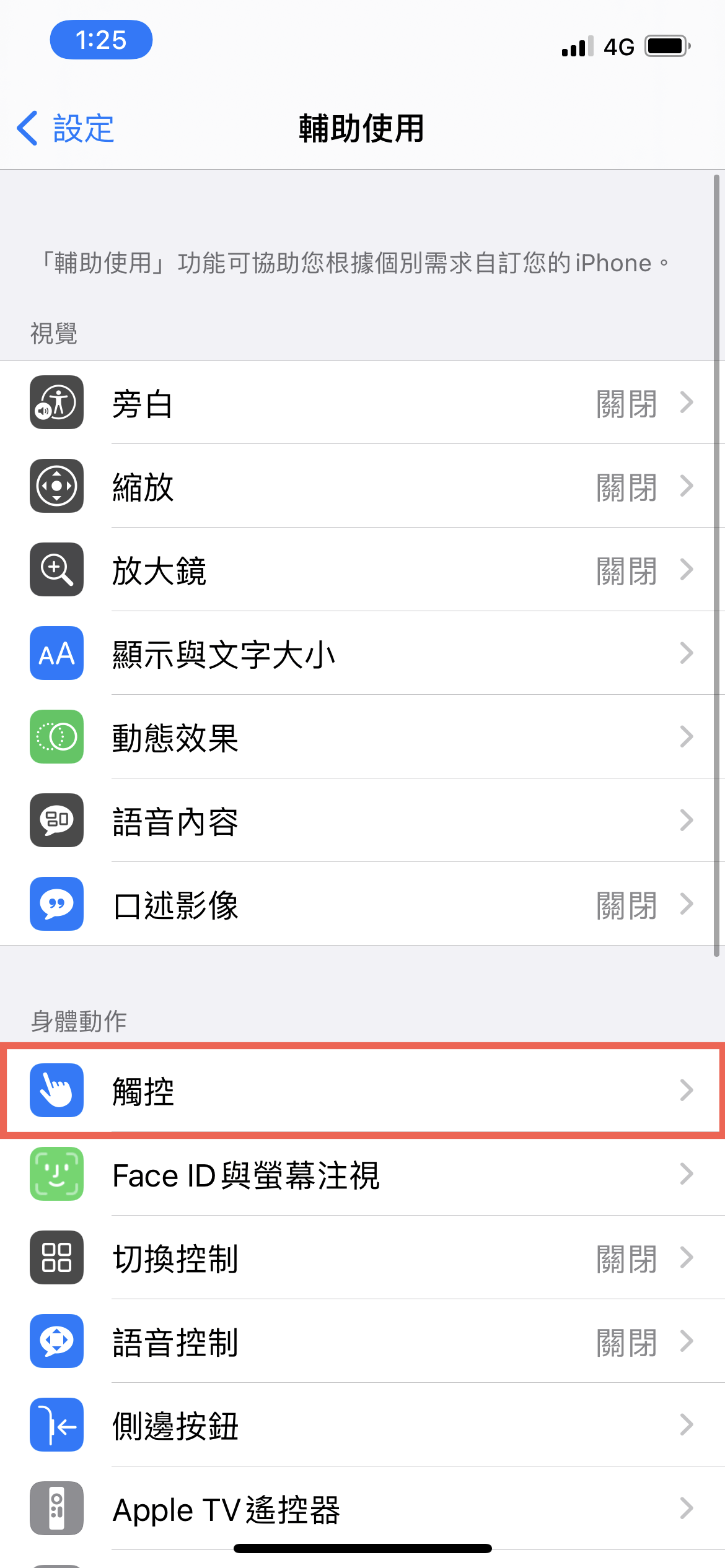
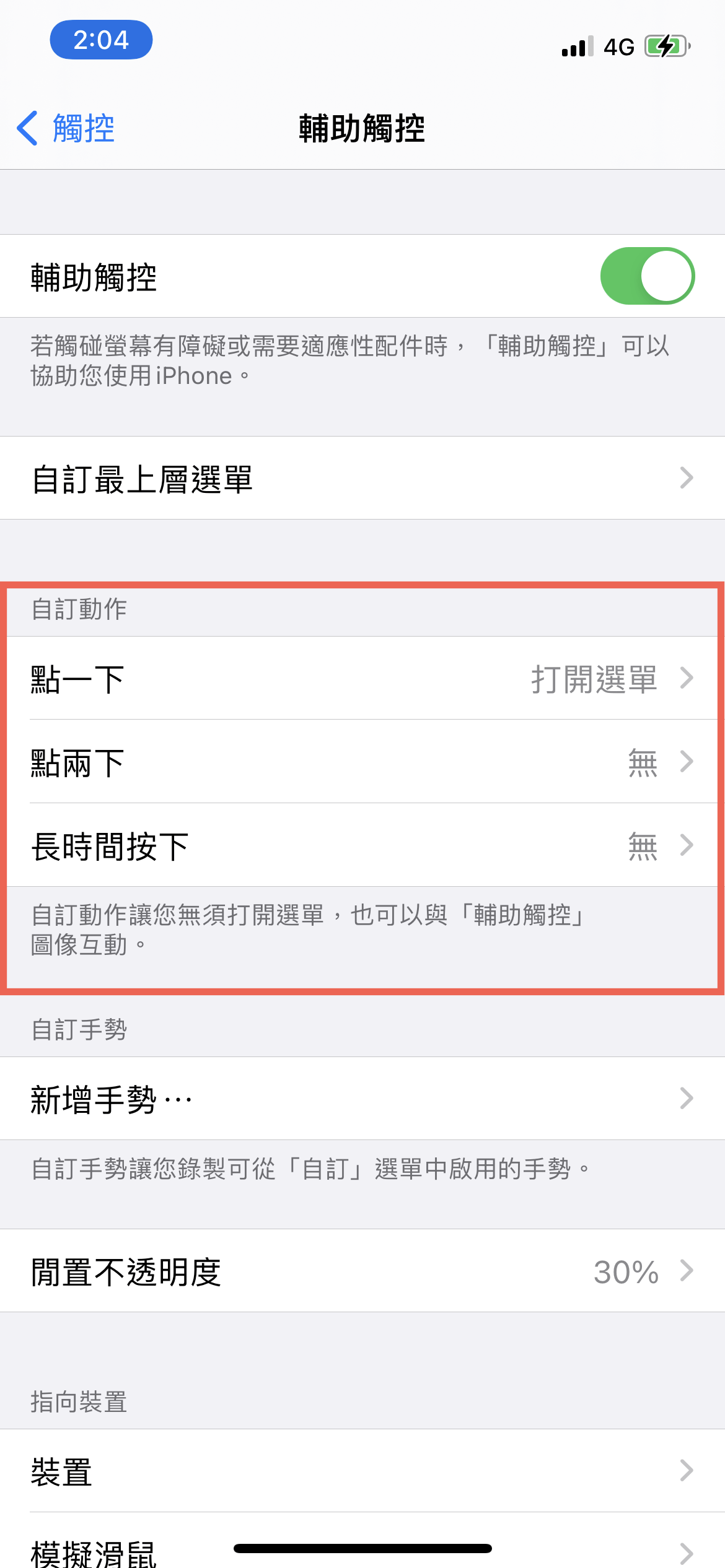
然後點選【輔助觸控(預設為關閉)】。

之後將「輔助觸控」開啟即可開始使用。


開啟後會在右上角出現一個小白點。


增加及減少 iOS 輔助觸控功能
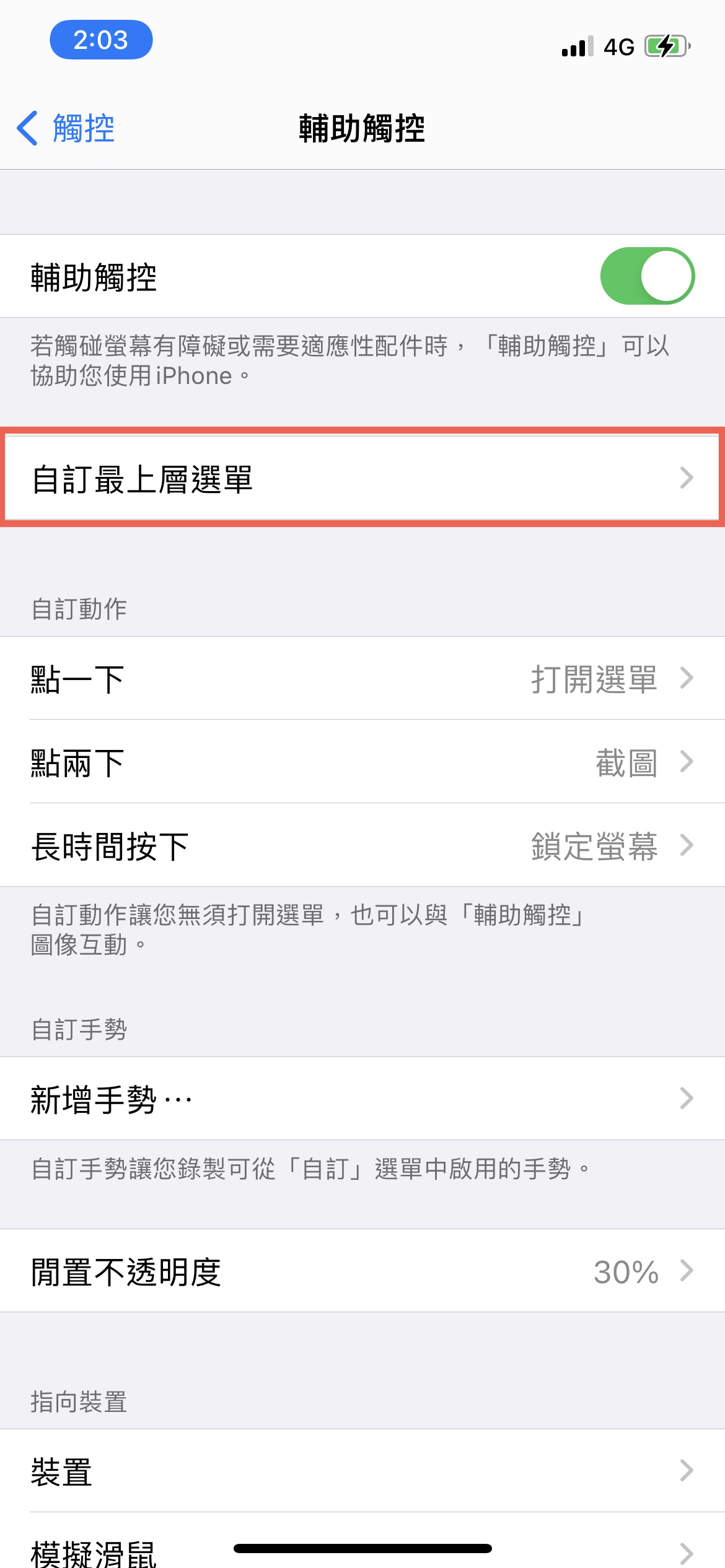
如果要增加、修改新的輔助觸控按鈕,只需要點選【自訂最上層選單…】。
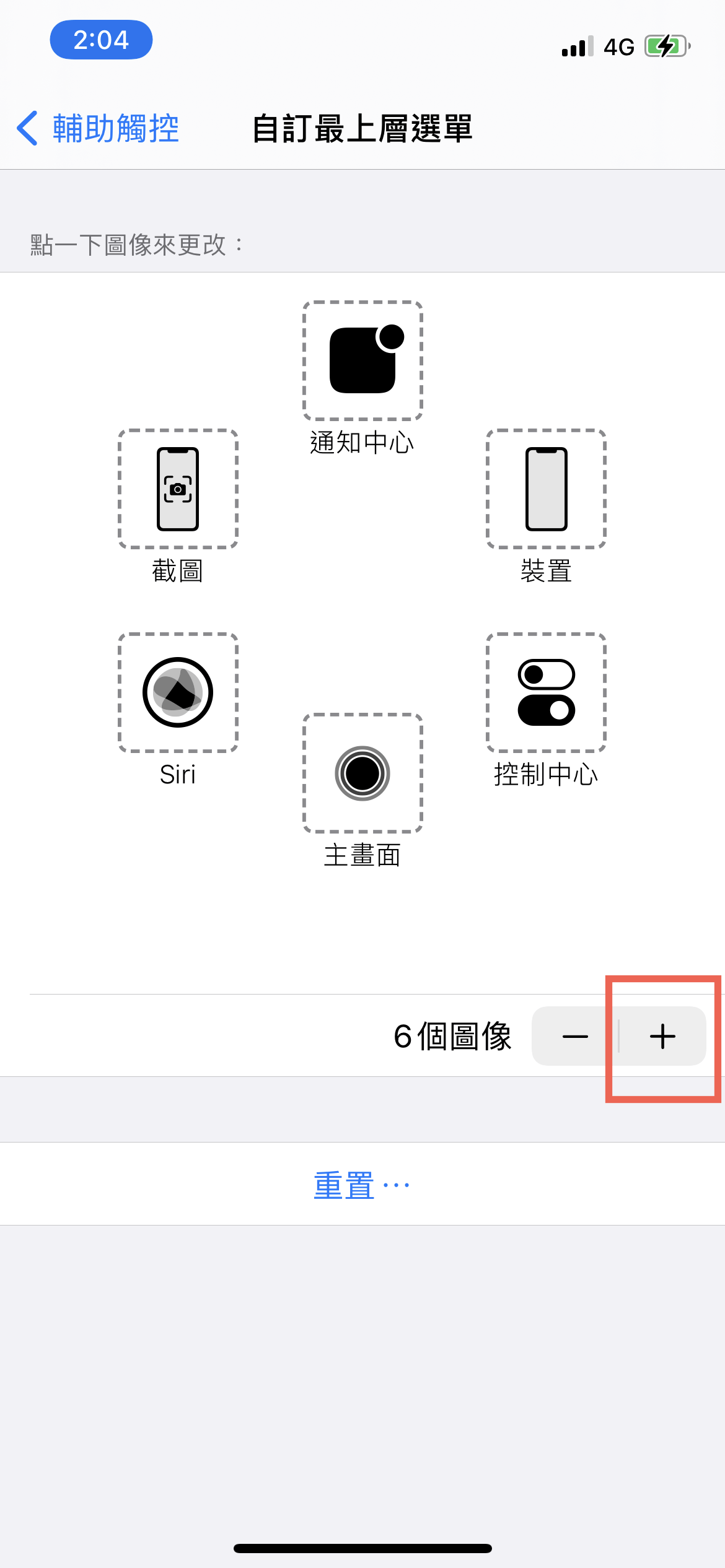
然後選擇【+】在上方會增加一個新的按鈕。
若是想刪減就用【─】來刪除按鈕。

此外要修改目前按鈕位置的功能或者增加功能,只需要點選想要修改按鈕,再點選【完成】就完成修改了。


重置 iOS 輔助觸控功能
要想重置至最原本 iOS 輔助觸控功能,只需要點選【自訂最上層選單…】內的重置。

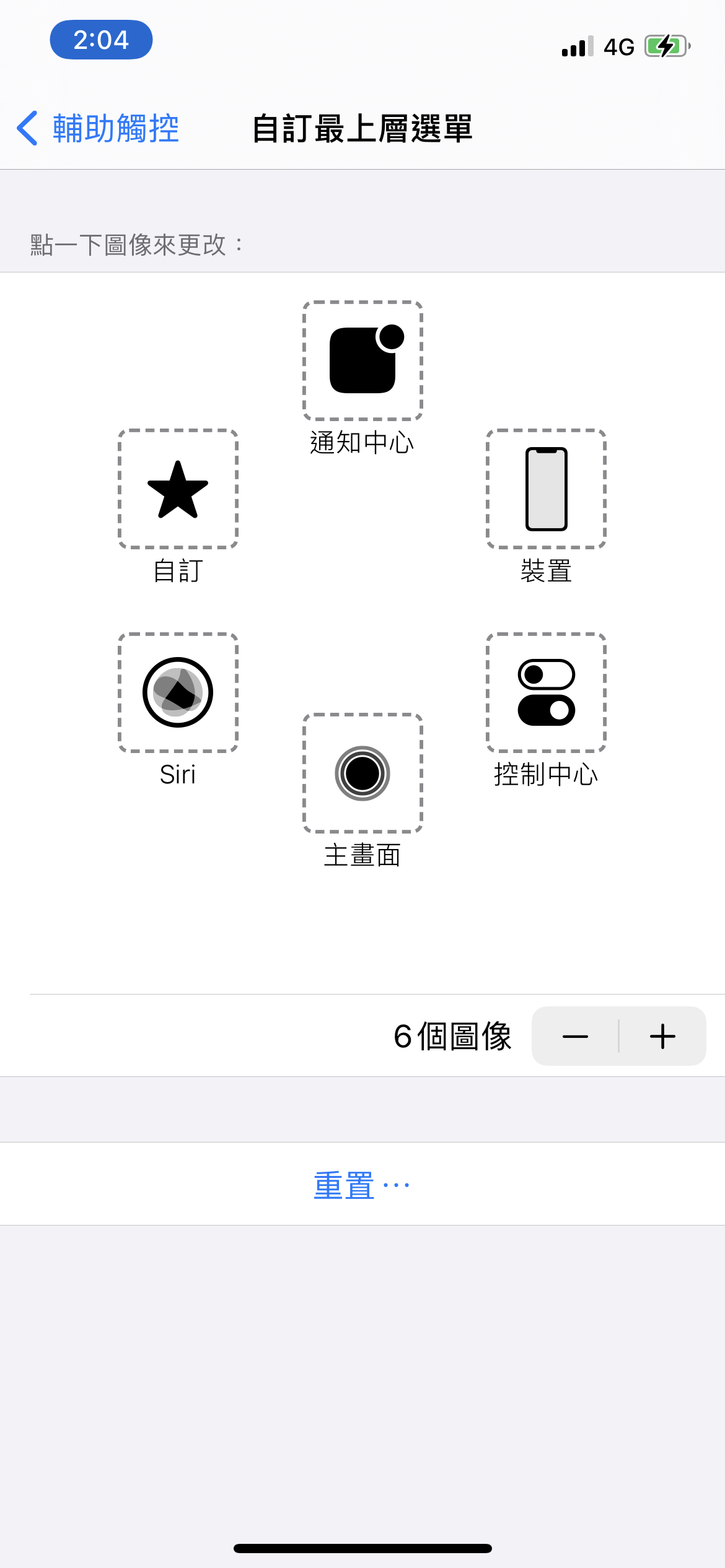
但是要特別注意的是如果這邊重置的話,外部的設定也會跟著重置。
調整 iOS 輔助觸控的透明度
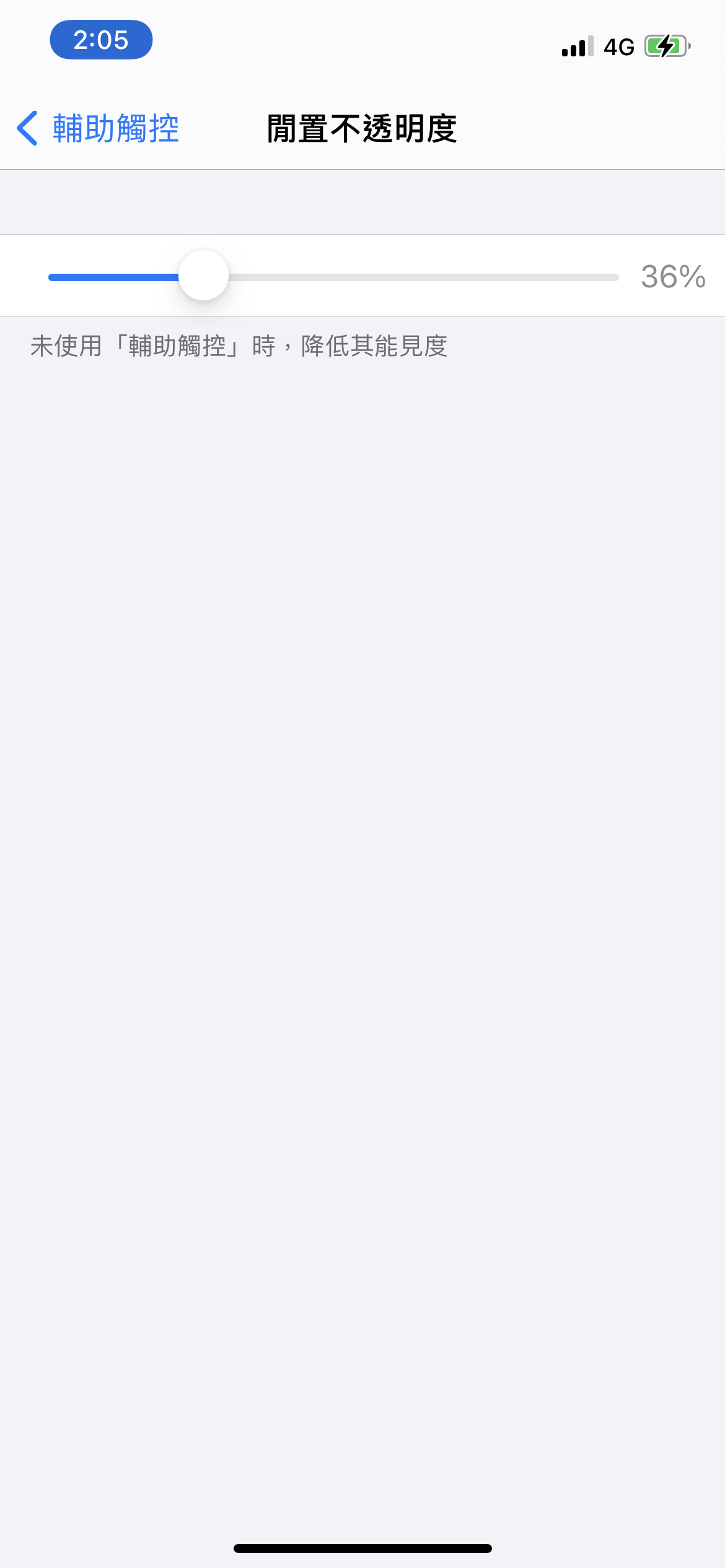
再來就是輔助觸控的待機顯示時,調整透明度顯示。
首先點選【閒置不透明度】,預設為30%。

再依照自己的需求調整透明度即可。




iPhone 開啟輔助觸控(Assistive Touch)小白點功能
iPhone新版本的Assistive Touch俗稱的「小白點」改為中文名字「輔助觸控」,雖然說新的iPhone已經不會因為按壓Home鍵導致Home鍵壽命減短,但是有可能還是會因為沒實體按鍵而感到不方便,所以用輔助觸控來取代快速執行功能。
注意事項:適用於 padOS。
開啟 iOS 輔助觸控功能
首先進入【設定】之後點選【輔助使用】,進入後在輔助使用中選擇【觸控】。
然後點選【輔助觸控(預設為關閉)】。
之後將「輔助觸控」開啟即可開始使用。
開啟後會在右上角出現一個小白點。
增加及減少 iOS 輔助觸控功能
如果要增加、修改新的輔助觸控按鈕,只需要點選【自訂最上層選單…】。
然後選擇【+】在上方會增加一個新的按鈕。
若是想刪減就用【─】來刪除按鈕。
此外要修改目前按鈕位置的功能或者增加功能,只需要點選想要修改按鈕,再點選【完成】就完成修改了。
重置 iOS 輔助觸控功能
要想重置至最原本 iOS 輔助觸控功能,只需要點選【自訂最上層選單…】內的重置。
但是要特別注意的是如果這邊重置的話,外部的設定也會跟著重置。
調整 iOS 輔助觸控的透明度
再來就是輔助觸控的待機顯示時,調整透明度顯示。
首先點選【閒置不透明度】,預設為30%。
再依照自己的需求調整透明度即可。
歡迎品牌、公關公司、代理商、活動主辦單位與相關企業刊登新聞稿。
本站專注於動漫 ACG、影劇音樂、Apple 生態圈、數位生活、旅遊及日本文化等內容,
若您的資訊符合網站主題,歡迎與我們分享。
你的支持是我們最大的動力,歡迎分享文章!